Convert anything, mid‑drag.
Pick up any file, tap ⇧, drop it on a format. The result lands next to the original.
Converting a file shouldn’t take six steps.
Start dragging any file, from Finder, the Desktop or any app. While the button is still down, tap a key and the wheel blooms under the pointer. A drag without a key tap stays a normal drag.
The result is saved next to the original. Drop in the center, outside the wheel, or press esc to cancel.
One key, one wheel.
The wheels follow the file. Tap another key mid-drag to switch.
Up to eight choices sit in the first ring.
896 ways to convert.
Images, video, audio, PDF, documents, e-books, presentations, spreadsheets, subtitles, archives and folders. Office and iWork conversions appear when Keynote, Pages, Numbers or LibreOffice are installed. Nothing else depends on them.
Every format the Convert wheel offers for a .heic file. Also: JP2, PSD, TGA.
Every format Dropwheel reads
68 tools, sorted by what you dropped.
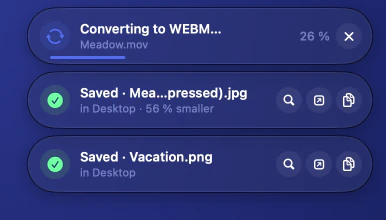
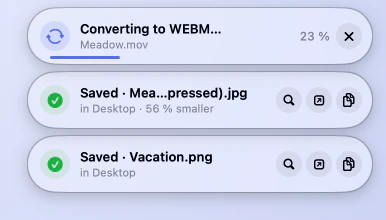
Tools add a suffix and keep the original: photo (compressed).jpg.
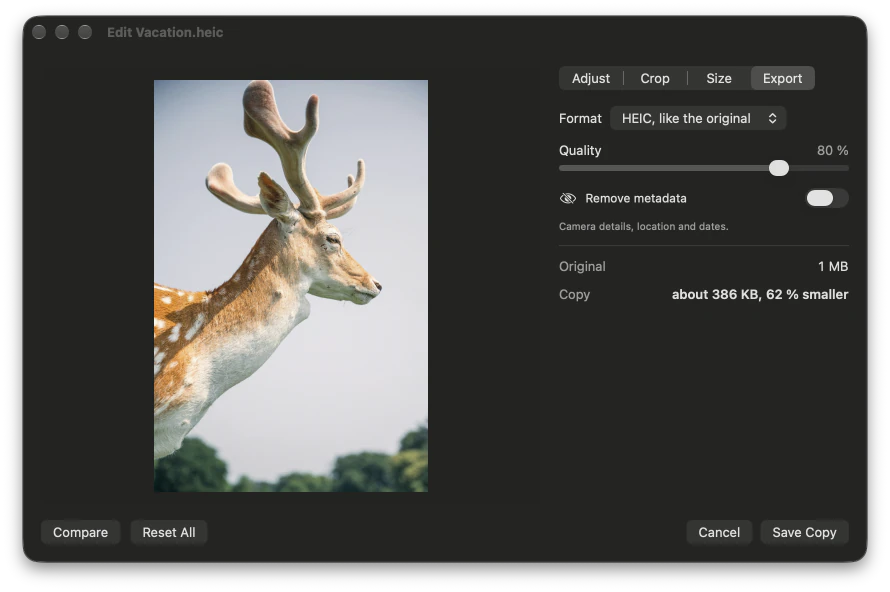
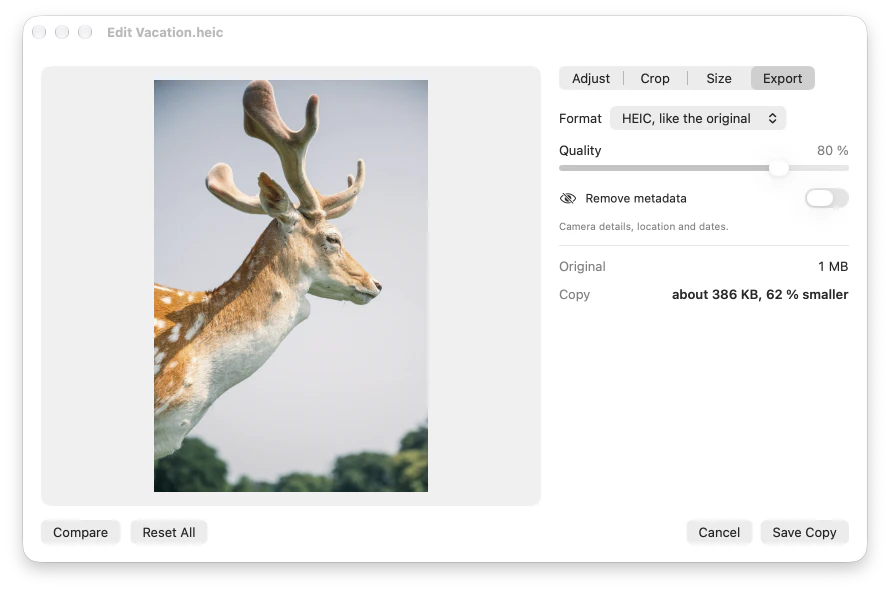
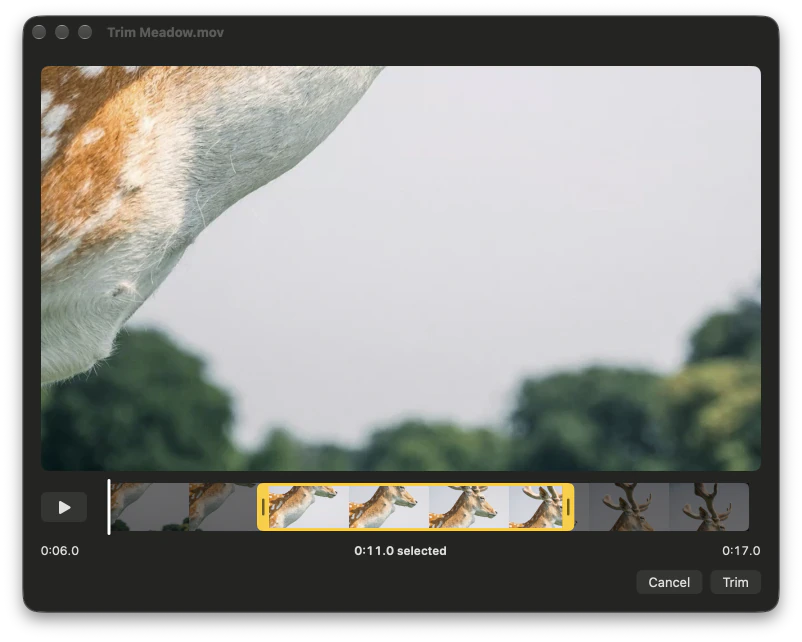
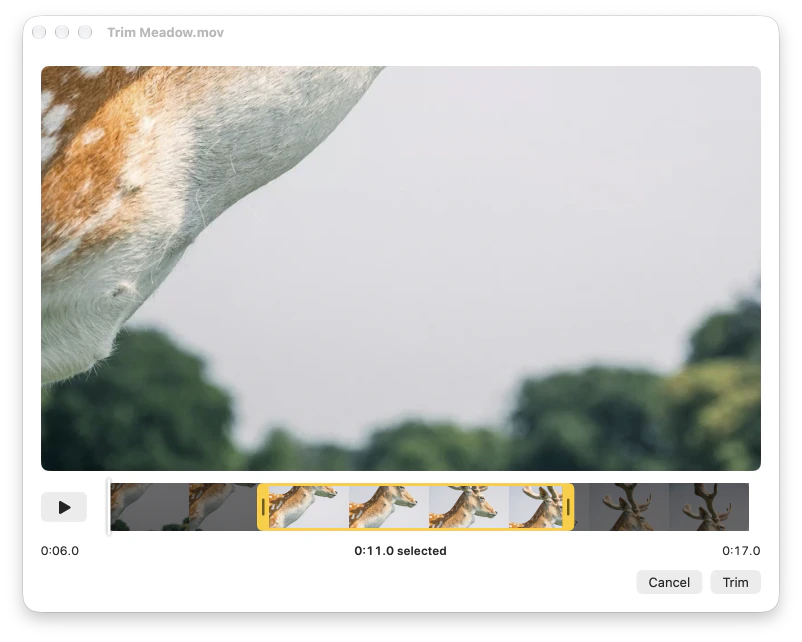
When a tool needs you, it asks once.
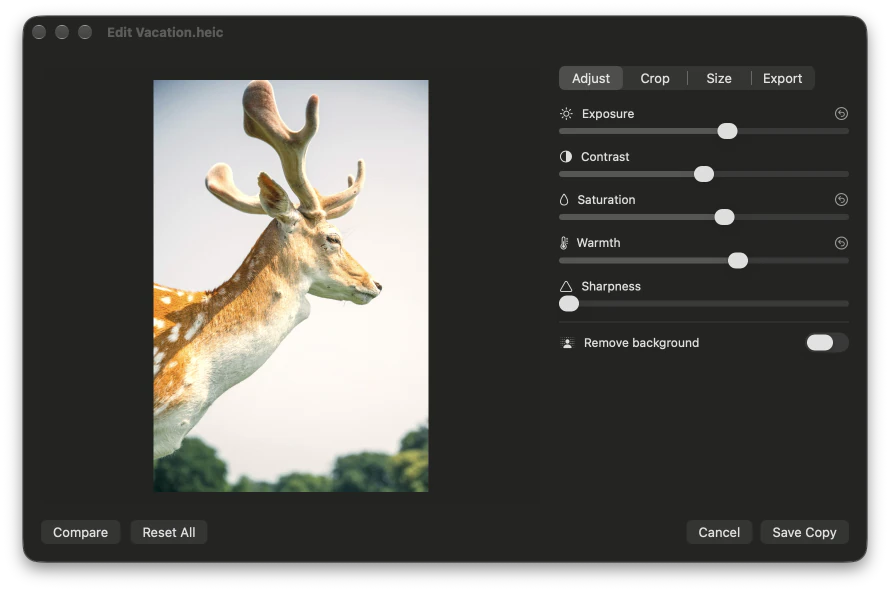
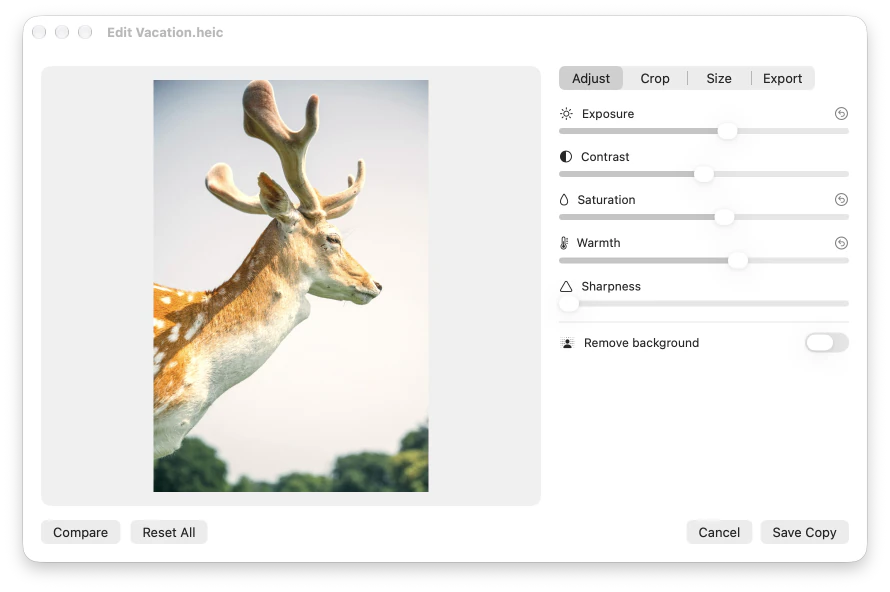
Exposure, contrast, saturation, warmth and sharpness. Background removal onto transparency or a color.
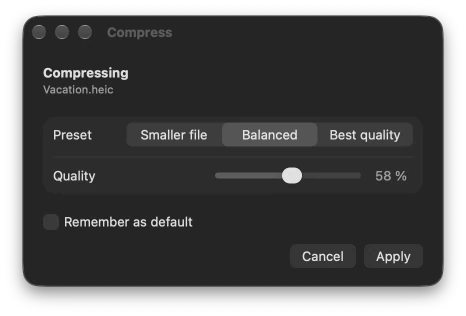
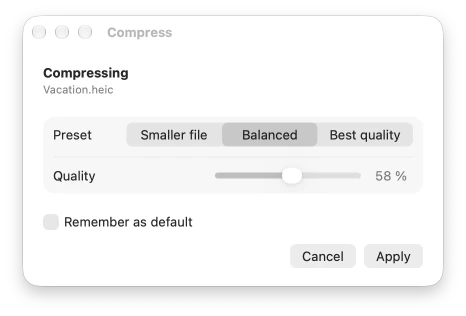
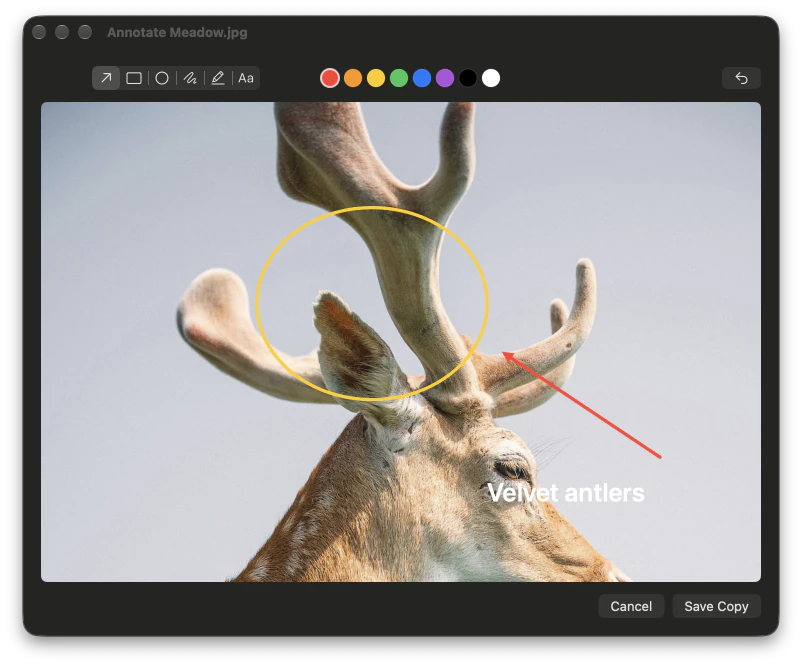
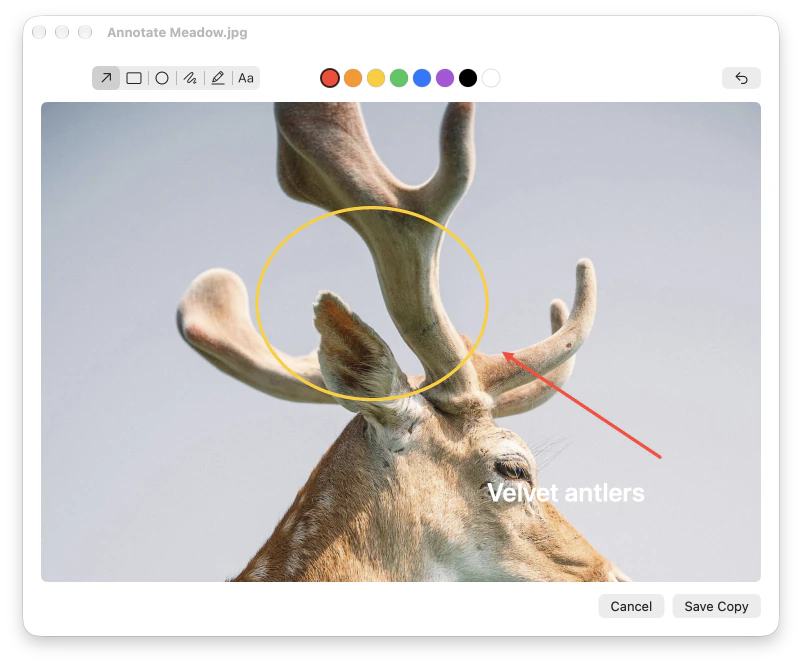
No drag? Click mode.
The original is never touched.
Every operation writes a new file next to the original. Move is the one action that moves files. When a folder is read-only, results go to Downloads.
Offline by design.
Press them. The keys here answer.
The keys, the accent color and which eight options sit in the first ring are all in Settings.
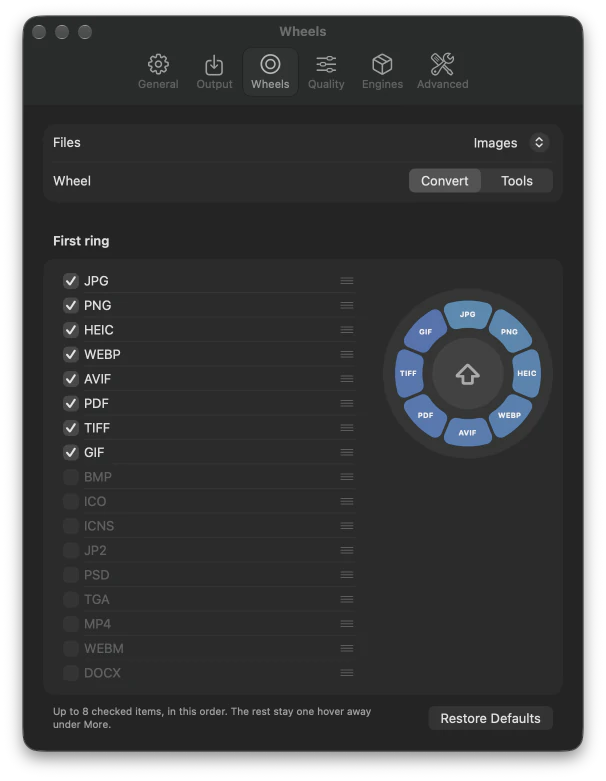
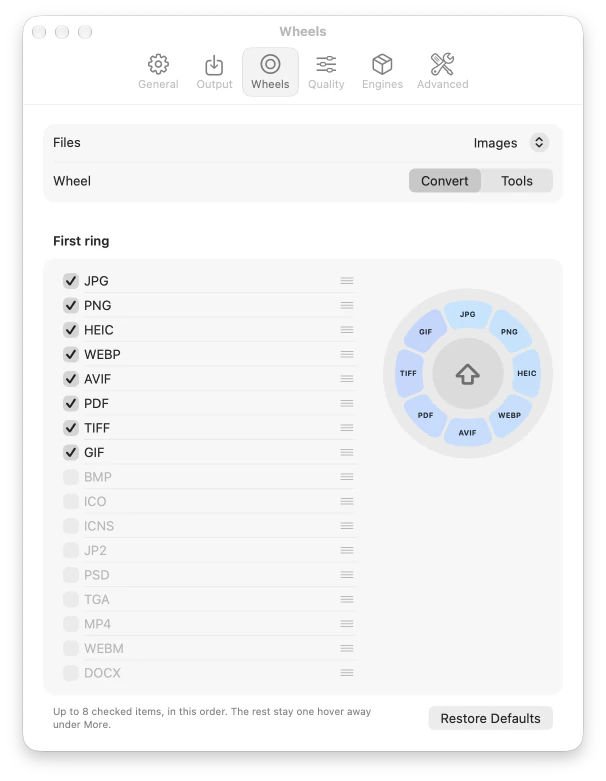
Settings → Wheels: which eight options sit in the first ring, for each kind of file.
Seven steps, once.
Dropwheel isn’t notarized by Apple, so macOS stops it the first time you open it. That’s expected, and you only do this once.
Download Dropwheel-1.0.0.dmg (about 19 MB) and open it.
Drag Dropwheel into the Applications folder and open it from there, not from the disk image or Downloads.
Check your version in Apple menu → About This Mac.
1. Double-click Dropwheel. macOS says it was not opened. Click Done, not Move to Trash: Move to Trash is the highlighted button, so don’t press Return.
“Dropwheel” Not OpenedApple could not verify “Dropwheel” is free of malware that may harm your Mac or compromise your privacy.2. Open System Settings → Privacy & Security and scroll down to Security.
3. Next to “Dropwheel” was blocked, click Open Anyway. The button appears only after the first try, for about an hour; if it’s gone, open Dropwheel again.
4. In the dialog that follows, click Open Anyway again and confirm with your password or Touch ID.
Control-click (or right-click) Dropwheel in Applications, choose Open, then click Open in the dialog.
Comfortable with Terminal? Run this, then open Dropwheel normally.
~ % xattr -dr com.apple.quarantine /Applications/Dropwheel.appDropwheel has no Dock icon or main window. Look for the ring of eight slices at the top right of the screen. A short Getting Started window opens the first time.
Start dragging any file, tap ⇧ while still holding the mouse button, and drop on a format. ⌘ opens Tools and ⌃ opens Actions. Practice in the playground.
The first time Dropwheel saves next to a file in Desktop, Documents or Downloads, macOS asks once for that folder. Click Allow.
The first ⌥⇧Space asks to let Dropwheel control Finder; allow it. Turn on Launch at login in Settings → General.

Questions, answered.
It’s distributed outside the Mac App Store and isn’t notarized by Apple. Follow step 3 of the install guide once.
Run the Terminal command from step 3, then open it again.
xattr -dr com.apple.quarantine /Applications/Dropwheel.appKeep the mouse button down while you tap, and drag a file rather than selected text. Check that the icon is in the menu bar, and check the keys in Settings → General.
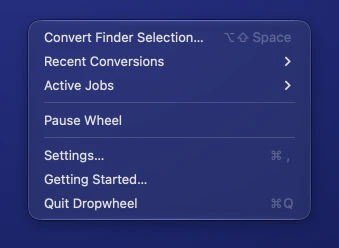
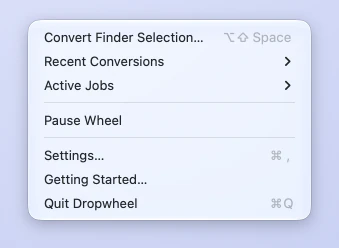
In the menu bar at the top right. Choose Getting Started… in its menu to see the introduction again.
No. Dropwheel has no networking code, and everything runs on your Mac.
No. Every result is a new file next to the original. Only Move moves a file.
No. It needs Apple silicon and macOS 14 or later.
Those conversions need Keynote, Pages, Numbers or LibreOffice installed. Settings → Engines shows what each one unlocks.
Quit Dropwheel from its menu, replace the app in Applications, and open it again. Repeat step 3 if macOS asks.
Quit from the menu and move Dropwheel to the Trash. To also clear its permissions, run:
tccutil reset All com.abdulloh.dropwheel